
Integrations
Continue
Continue is an open-source AI coding assistant. Point its openai provider at DEVUP AI in config.yaml, and chat, Agent mode and file edits run on DEVUP AI models.
Requirements
- VS Code with the Continue extension
- A DEVUP AI API key from https://devupai.com/dashboard/api-keys.
Install Continue in VS Code
code --install-extension Continue.continueOr search for Continue in the VS Code Extensions view.
Configure Continue with an OpenAI-compatible API
Open config.yaml:
- macOS and Linux: ~/.continue/config.yaml
- Windows: %USERPROFILE%\.continue\config.yaml
Add a model entry that points at DEVUP AI:
name: DEVUP AI
version: 1.0.0
schema: v1
models:
  - name: DeepSeek V4 Pro (DEVUP AI)
    provider: openai
    model: deepseek-ai/DeepSeek-V4-Pro
    apiBase: https://api.devupai.com/v1
    apiKey: your-devup-api-key
    roles:
      - chat
      - edit
      - apply
    capabilities:
      - tool_use
Model fields
| Field | Value | Why |
|---|---|---|
| provider | openai | Uses Continue's OpenAI-compatible client. |
| model | deepseek-ai/DeepSeek-V4-Pro | The exact DEVUP AI catalog ID. |
| apiBase | https://api.devupai.com/v1 | Sends requests to DEVUP AI. |
| apiKey | your DEVUP AI key | Authenticates every request. |
| roles | chat, edit, apply | Where Continue uses this model. |
| capabilities | tool_use | Tells Continue the model can use tools, which Agent mode needs. |
config.yaml stores your key in plain text. Keep it in your home folder and never copy it into a project or commit it.
Chat with DEVUP AI models in Continue
- Run Developer: Reload Window from the Command Palette.
- Press Ctrl+L to open Continue.
- Pick DeepSeek V4 Pro (DEVUP AI) in the model picker.
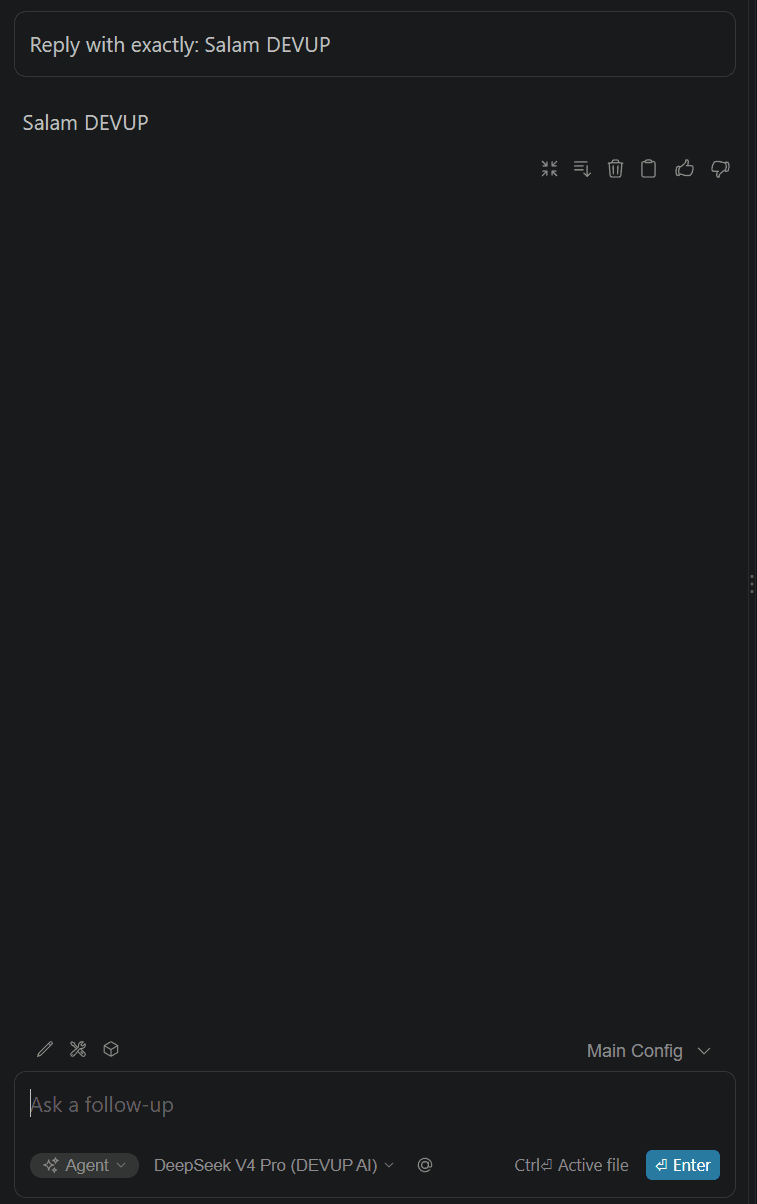
Agent mode and file edits
Continue opens in Agent mode. With tool_use set, the agent can create and edit files: asked to create hello.py, it wrote print("Salam DEVUP"). Select code and press Ctrl+I to add it to the chat, then ask for a change — here, Add a docstring.
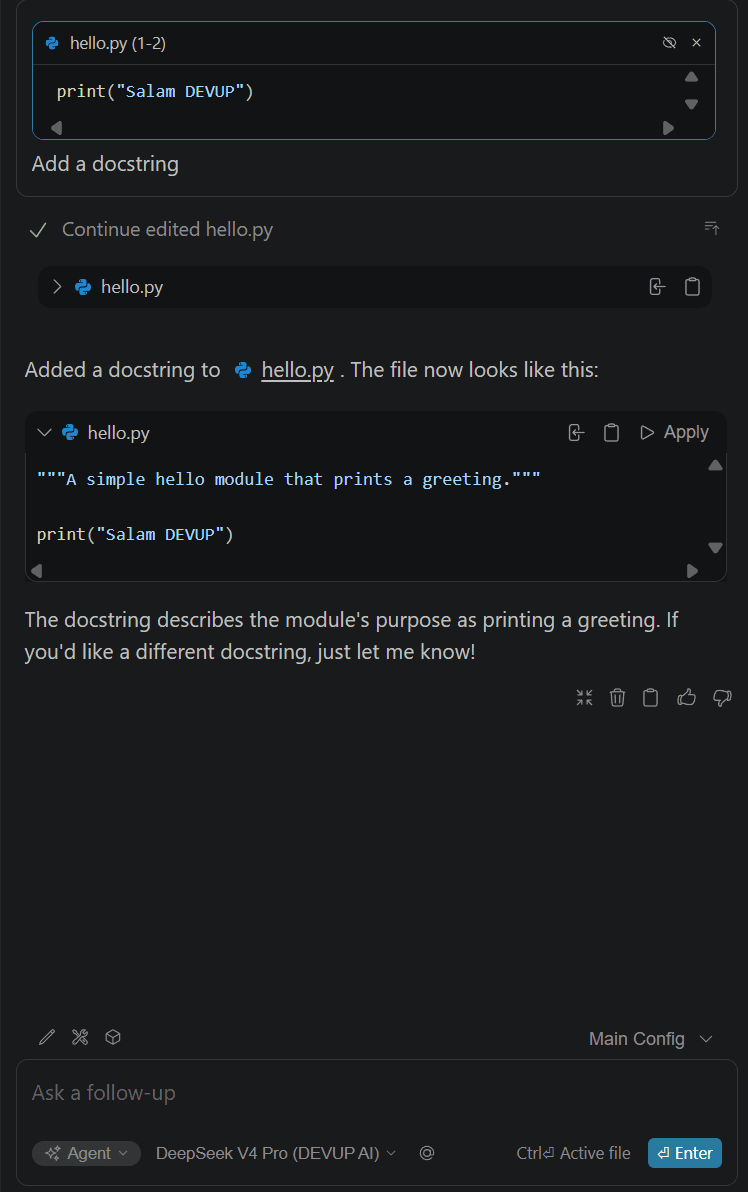
Choosing models
Use the exact catalog ID as model. Agent mode needs a model whose catalog entry supports tool calling. See Models and Tool Calling.
Troubleshooting
- Authentication error (401)Check that apiKey holds your DEVUP AI key and apiBase is https://api.devupai.com/v1.
- The model is missing from the pickerRun Developer: Reload Window after saving config.yaml, and check the YAML indentation: models is a top-level list.
- Agent mode does not use toolsAdd tool_use under capabilities. Continue does not detect tool support for custom models on its own.
FAQ
Does Continue work with DEVUP AI?
Yes. Add a model with provider openai, apiBase https://api.devupai.com/v1 and your DEVUP AI key to config.yaml, then pick it in the Continue panel.
How is Continue usage billed on DEVUP AI?
Every request Continue makes is a regular DEVUP AI API call, metered in Algerian Dinar on your account.
Does Agent mode work with DEVUP AI models?
Yes. With tool_use under capabilities, the agent created and edited files through DEVUP AI.
Where is Continue's config.yaml?
In ~/.continue/config.yaml on macOS and Linux, and %USERPROFILE%\.continue\config.yaml on Windows.
Is my API key safe in config.yaml?
The key is stored in plain text. Keep config.yaml in your home folder and never copy it into a project or commit it.