
Integrations
VS Code
VS Code can use DEVUP AI models in chat and Agent mode through its built-in Custom Endpoint, with no extension required.
Prerequisites
- VS Code
- A DEVUP AI API key from https://devupai.com/dashboard/api-keys
Add DEVUP AI as a Custom Endpoint
Open Chat in VS Code.
Open the native Chat panel in VS Code.
Open the model picker above the chat input and choose Manage Models.
In the chat panel, click the active model name above the input area to reveal the dropdown and select Manage Models.
Choose Add Models, then Custom Endpoint.
From the management menu, select Add Models and pick Custom Endpoint.
For API Type, choose Chat Completions.
Select Chat Completions as the protocol format.
Give the group a name and enter your DEVUP AI API key when prompted.
Assign an identifier to your endpoint group and supply your API key from the API keys dashboard.
VS Code opens chatLanguageModels.json. Add your model inside the models array of the Custom Endpoint group.
Paste the following configuration inside the models array:
{
  "id": "deepseek-ai/DeepSeek-V4-Pro",
  "name": "DeepSeek V4 Pro (DEVUP AI)",
  "url": "https://api.devupai.com/v1/chat/completions",
  "toolCalling": true,
  "vision": false,
  "maxInputTokens": 1048576,
  "maxOutputTokens": 16000
}url is the full endpoint path, not a base URL.vision to match the model you are adding. Models without image input should have it set to false.Save the file, then select the model in the chat model picker.
Save chatLanguageModels.json and pick your new model directly in the chat panel.
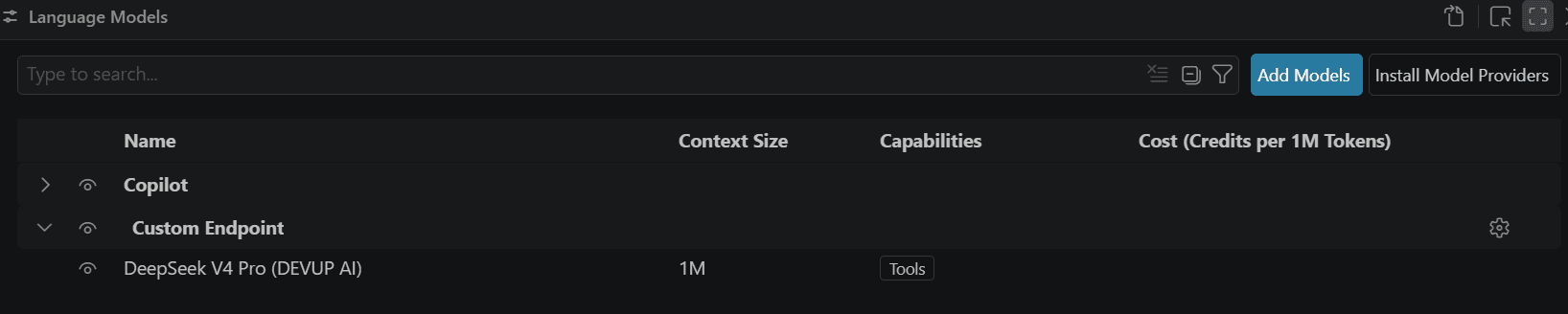
chatLanguageModels.json entry
{
  "id": "deepseek-ai/DeepSeek-V4-Pro",
  "name": "DeepSeek V4 Pro (DEVUP AI)",
  "url": "https://api.devupai.com/v1/chat/completions",
  "toolCalling": true,
  "vision": false,
  "maxInputTokens": 1048576,
  "maxOutputTokens": 16000
}
chatLanguageModels.json Field Reference
Each entry in the Custom Endpoint models array accepts the following parameters:
| Field | Type | Description |
|---|---|---|
| id | string | Model identifier from DEVUP AI catalog (e.g. "deepseek-ai/DeepSeek-V4-Pro") |
| name | string | Display label shown in VS Code model picker |
| url | string | Full endpoint path: "https://api.devupai.com/v1/chat/completions" |
| toolCalling | boolean | Set to true to enable workspace tool use and Agent mode |
| vision | boolean | Set to match model capabilities; false for models without image input |
| maxInputTokens | number | Input context window matching the model being added (verify model-specific limits in the models catalog) |
| maxOutputTokens | number | Maximum generation tokens matching the model being added (verify model-specific limits in the models catalog) |
Use Agent mode
In Agent mode, VS Code reads workspace files, runs terminal commands, and applies code edits through tool calling, and streams the model's replies into the chat.
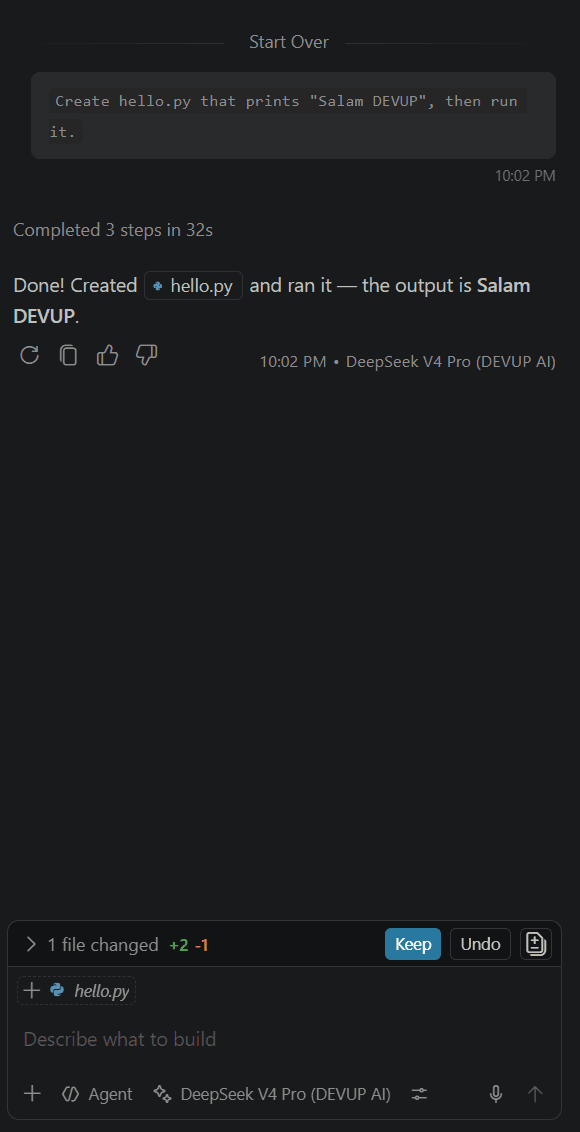
Choosing a model
For Agent mode, use a model whose catalog entry supports tool calling, for example deepseek-ai/DeepSeek-V4-Pro, and set toolCalling to true in its entry. See Tool Calling and Models.
Troubleshooting
- Authentication error (401)enter your DEVUP AI key as-is when VS Code prompts for it.
- Model IDthe
idfield must match the catalog exactly, for exampledeepseek-ai/DeepSeek-V4-Pro.